Thursday, December 4, 2025

Excel VBA Code to Excel to Word

 This below code will help to Excel data to word file:

Sub GenerateWordFiles()


    'Declare Word application and document objects

    Dim wdApp As Object              'Word application instance

    Dim wdDoc As Object              'Word document instance


    'Paths for template, output folder, and 2nd workbook

    Dim TemplatePath As String

    Dim SavePath As String

    Dim Macro2Path As String


    'Excel variables

    Dim lastRow As Long, i As Long

    Dim contract_keys As String, contract_name As String


    'Word Table variables

    Dim tbl1 As Object, tbl2 As Object

    Dim wb2 As Workbook

    Dim wsCP As Worksheet            'Connected Parties sheet

    Dim CP_LastRow As Long          'Last row of CP output

    Dim CP_Row As Long              'Loop counter

    Dim tbl1_Row As Long, tbl2_Row As Long


    'Read paths from RUNNNN sheet

    ''Change below ThisWorkbook.Sheets("RUNNNN") with your Workbook1 sheet name

    '''Change H2,J3,J4 to your path addresses

    Set wb1 = ThisWorkbook.Sheets("RUNNNN")

    TemplatePath = wb1.Range("J4").Value     'Word template

    SavePath = wb1.Range("J3").Value         'Output folder

    Macro2Path = wb1.Range("J2").Value       '2nd workbook file path

    startNum = wb1.Range("J1").Value


    'Create output folder if not exists

    If Dir(SavePath, vbDirectory) = "" Then MkDir SavePath


    'Get last row in column A

    lastRow = Cells(Rows.Count, "A").End(xlUp).Row


    'Create Word application

    Set wdApp = CreateObject("Word.Application")

    wdApp.Visible = True                                'Show Word


    'Open the second workbook containing the macro

    Set wb2 = Workbooks.Open(Macro2Path)


    'Loop through input rows starting from value in RUNNNN J1

    For i = startNum To lastRow


        'Read contract values

        contract_keys = wb1.Cells(i, "A").Value

        contract_name = wb1.Cells(i, "B").Value


        'Send contract key into wb2

        ''Change sheet name where it want to place the contract_keys, mention that sheet name

        ''If you want to place it in multiple places, copy the same below line code extra and

        ''change the sheet name and range below.

        wb2.Sheets("Sheet1").Range("D2").Value = contract_keys


        'Run macro in second workbook

        Application.Run "'" & wb2.Name & "'!PopulateAndSortCPsDetails"


        'Set reference to CP output sheet after macro runs

        ''If the output needs to pull from different sheet then change the name below

        ''If the output wants to pull from multiple sheet replace the same line

        ''again below with different Set Variable

        Set wsCP = wb2.Sheets("Connected Parties Check")


        'Open the Word template for this contract

        Set wdDoc = wdApp.Documents.Open(TemplatePath)


        'Replace the tag with contract name

        ReplaceTag wdDoc, "<<Contract_Name>>", contract_name


        '------------------ TABLE PROCESSING BEGINS ----------------------------


        'Get references to Table 1 and Table 2

        Set tbl1 = wdDoc.Tables(1)

        Set tbl2 = wdDoc.Tables(2)


        'Find last row of data from A11 downward

        CP_LastRow = wsCP.Cells(wsCP.Rows.Count, "A").End(xlUp).Row


        '-----------------------------------------------------

        ' TABLE 1 ? Insert/Delete rows based on CP output

        '-----------------------------------------------------


        'Ensure table has correct number of rows

        AdjustWordTableRows tbl1, CP_LastRow - 10   'Subtract 10 because data starts at row 11


        'Fill Table 1 rows

        tbl1_Row = 2   'Assuming row 1 is header


        For CP_Row = 11 To CP_LastRow

            tbl1.Cell(tbl1_Row, 1).Range.Text = wsCP.Cells(CP_Row, "F").Value

            tbl1_Row = tbl1_Row + 1

        Next CP_Row


        '-----------------------------------------------------

        ' TABLE 2 ? Only authorised rows (Column M)

        '-----------------------------------------------------


        'Clear all existing data rows in Table 2 (except header)

        AdjustWordTableRows tbl2, 0


        tbl2_Row = 2


        For CP_Row = 11 To CP_LastRow


            If wsCP.Cells(CP_Row, "M").Value = "Authorised" Then


                'Add new row in Table 2

                tbl2.Rows.Add


                'Write Column L value into Table 2

                tbl2.Cell(tbl2_Row, 1).Range.Text = wsCP.Cells(CP_Row, "L").Value


                tbl2_Row = tbl2_Row + 1

            End If


        Next CP_Row


        '------------------ TABLE PROCESSING ENDS ----------------------------


        'Construct file name

        ''Here contract_name will be your output extra sub folder will create

        Dim FileName As String

        FileName = SavePath & "\" & contract_name


        'Create subfolder if missing

        If Dir(FileName, vbDirectory) = "" Then MkDir FileName


        'Final file path

        ''File name will pick first 2 characters

        FileName = FileName & "\CDD_" & Left(contract_name, 2) & ".docx"


        'Delete existing file if already exists

        If Dir(FileName) <> "" Then Kill FileName


        'Save Word file

        wdDoc.SaveAs2 FileName


        'Close Word file

        wdDoc.Close False


    Next i


    'Quit Word application

    wdApp.Quit


    MsgBox "All Word files generated successfully!", vbInformation


End Sub


Sub ReplaceTag(doc As Object, findText As String, replaceText As String)

    With doc.Content.Find

        .Text = findText

        .Replacement.Text = replaceText

        .Forward = True

        .Wrap = 1

        .Execute Replace:=2

    End With

End Sub


Sub AdjustWordTableRows(tbl As Object, requiredRows As Long)


    Dim currentRows As Long

    currentRows = tbl.Rows.Count - 1          'Minus header


    'Add missing rows

    While currentRows < requiredRows

        tbl.Rows.Add

        currentRows = currentRows + 1

    Wend


    'Remove extra rows

    While currentRows > requiredRows And requiredRows >= 0

        tbl.Rows(tbl.Rows.Count).Delete

        currentRows = currentRows - 1

    Wend


End Sub


Sub CleanWordTableEmptyRows(tbl As Object)

    Dim r As Long


    For r = tbl.Rows.Count To 2 Step -1        'Skip header row

        If Trim(tbl.Cell(r, 1).Range.Text) = "" Or _

           Trim(Replace(tbl.Cell(r, 1).Range.Text, Chr(13), "")) = "" Then

            tbl.Rows(r).Delete

        End If

    Next r


End Sub


Saturday, May 28, 2011

Install Windows xp Very Fast


Now, this tip will be very helpful for those who frequently install windows xp operating system. Normally OS installation takes around 40 minutes to complete, but through this trick you can now save 10-15 minutes. This simple tricks goes this way.

1. Boot through Windows XP CD.


2. After all the files are completely loaded, you get the option to select the partition. Select “c”.

3. Now Format the partition, whether it is normal or quick with NTFS or FAT

4. Once the formatting is completed, All the setup files required for installation are copied. Restart your system by pressing Enter.

Now, here begins the Simple trick to save 10-15 minutes.

5. After rebooting, you get a screen where it takes 40 minutes to complete or finalize the OS installation.

6. Now, Press SHIFT + F10 Key -> This opens command prompt.

7. Enter “Taskmgr” at the command prompt window. This will open Task Manager.

8. Click the Process Tab, here we find a process called Setup.exe -> Right Click on Setup.exe -> Set Priority -> Select High or Above Normal. Initially it will be Normal.

Thats it, no more work to do. Relax your self and see how fast the installation process completes

Play Angry Birds Offline on your Browser! [Chrome]

Anyone familiar with iPhone apps, would have heard of the app called Angry Bird. The puzzle like video game, which has wingless birds being used to destroy green coloured pigs has been a massive hit over the last year. The combination of humour, puzzles and simplicity has created one of the biggest gaming hits in the past couple of years.


It has been downloaded about 140 million times across platforms. It was initially released on Apple’s iOS platform. Now there are versions for Symbian, Android, Mac OS X, Windows and PlayStation.

With Chrome web store, users can play Angry Birds on a browser.

Installing Angry Birds on Chrome!
•The Angry Birds Chrome app can work with any browser, but if used on Chrome, we can use some of the Chrome specific features.
•One of them is Chrome Bombs and other special features.
•Also if using as Chrome web app, we can play the game on the browser even when the computer is offline. This could be very useful for frequent travellers who spend a lot of time killing time on trains and aeroplanes where you may not be able to access the internet.
If you are new to the Angry Bird phenomenon, look up the video below which gives a back story.

Monday, January 24, 2011

How to Create a Hard Disk Partition in Windows 7

Do you have plenty of free space on your C: drive? If so, one of best things you can do is to create another drive on your hard disk by creating a new partition (also known as a volume). Fortunately, Windows Vista and Windows 7 both allow you to do this easily.You might be wondering why this is such a good idea. The safest place to store important information would be on a different machine, a backup drive or DVD. These aren’t always immediately available. It’s convenient to have an extra drive always there when needed. Another reason is that your operating system may some day need to be re-installed. If your personal information is on the same drive as the OS, you might lose it if it’s not backed up somewhere else.
Now that I’ve told you why, I’ll show you how. First, we’ll open the disk management console. An easy way to do this is the hit the Start button and type in the word “partition”, then select the result labeled “Create and format hard disk partitions”.
search-menu
Right click on the C: drive and choose “Shrink Volume”. This is the first step in creating the space you need for your new partition.
shrink-volume
Now you’ll see the system checking to see how much space you can borrow from your C: drive.
querying-shrink-space
After the query process, you’ll see the size before and size available. Type in the number of megabytes you want for your new partition. Keep in mind that 1024 megabytes is equal to one gigabyte. Also make the size smaller than the “available” by a one or two thousand megabytes, just to allow a safety margin.
amount-of-space-to-shrink
After the Shrink process finishes, you’ll see the new partition as “Unallocated”. The next step is to turn it into a simple volume. Right click on the unallocated space and chose “New Simple Volume”.
new-simple-volume0
Now you’ll see the “New Simple Volume Wizard”.
simple-volume-wizard
After clicking “Next”, you’ll be asked to specify a size for the new volume. The default is what you’d normally want, so click “Next” once again.
simple-volume-wizard2
You’ll be prompted to assign a new drive letter. I usually choose a higher letter so that the DVD or other devices on your system won’t have to be assigned new letters when they are detected. Click “Next” when you are done.
simple-volume-wizard3
Now you’ll be asked if you want to format the new volume. The best choice is typically NTFS. After making your choice here, click “Next”.
simple-volume-wizard4
You’ll be given one more look at the settings before you launch the formatting process. Review the info and click “Finish” when ready.
simple-volume-wizard5
Before it starts, you may get a warning about “Dynamic disk’s”. If you aren’t dual booting another operating system, you can ignore this and click “Yes”. If you are using more than one OS, you might lose any special boot managers at this point. You should research your best options if that’s the case.
dynamic-disk
Your new disk will appear in the Disk Management console now.
new-simple-volume2
That’s all there is to it. When you return to Windows, you’ll be able to use the new disk to store your personal information.

Remove AUTORUN.INF from infected computers

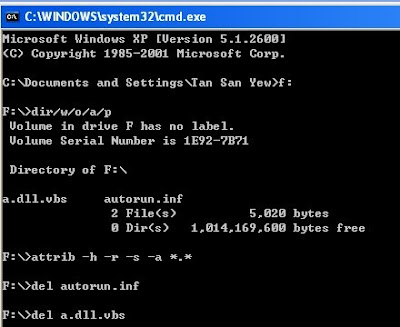
Remove Autorun.inf Manually here i have given  3 methods .Choose anyone Method to remove the Virus…
1st Method :
Start–>Run–> Type Cmd –>Click Ok
so just type this stuff
at c:\ prompt
attrib a*.inf -h -a -s -r
del autorun.inf

Note : Then Change the Drive Letter C,D,E,F,G….and repaeat the Same Process..
Example :
delete Remove AUTORUN.INF from infected computers
2nd Method:
This Method is Simple and Easy,

Here is a simple code to remove autorun.inf: (start copying from the next line down):
cd\
c:
attrib -r -s -h autorun.inf
del autorun.inf
d:
attrib -r -s -h autorun.inf
del autorun.inf
e:
attrib -r -s -h autorun.inf
del autorun.inf
f:
attrib -r -s -h autorun.inf
del autorun.inf
g:
attrib -r -s -h autorun.inf
del autorun.inf
h:
attrib -r -s -h autorun.inf
del autorun.inf
i:
attrib -r -s -h autorun.inf
del autorun.inf
j:
attrib -r -s -h autorun.inf
del autorun.inf
k:
attrib -r -s -h autorun.inf
del autorun.inf
l:
attrib -r -s -h autorun.inf
del autorun.inf
m:
attrib -r -s -h autorun.inf
del autorun.inf
n:
attrib -r -s -h autorun.inf
del autorun.inf
o:
attrib -r -s -h autorun.inf
del autorun.inf
p:
attrib -r -s -h autorun.inf
del autorun.inf
q:
attrib -r -s -h autorun.inf
del autorun.inf
r:
attrib -r -s -h autorun.inf
del autorun.inf
s:
attrib -r -s -h autorun.inf
del autorun.inf
Copy this in a NOTEPAD file, then save the notepad file as : “file.bat” and then run it to remove all the rubbish of autorun.inf
3rd Method :
Autorun Eater:
Autorun Eater was born due to increase of malwares using the ‘autorun.inf’ tactic to infect users unknowingly be it from flash drives, removable hard disks or any other removable storage device.

Download: Autorun Eater

Saturday, January 22, 2011

Convert Text on Webpages into Speech, Voice: (Don’t Read, Listen)

SpeechUtil is a Firefox add-on that allows you to listen the english text, selected in the web-page. Add-on converts selected text into the speech in OGG format.
# Install SpeechUtil : Link
Step 1 : After installing restart browser.
Step 2 : Simply select some text on any webpage.
Step 3 : Right Click and select "Listen Selected Text" menu-item in the context pop-up menu.
Listen to Selected Text on WebPages
You can click the yellow speaker icon in the right-bottom corner of the browser window.
Step 4 : Speech window will appear on the screen and you will be able listen to text, you just selected.
Convert Text on Webpages into Speech, Voice
This an useful way to listen to news online or just convert any article into speech and listen to it instead of reading it.
Note: You can actually download the .ogg file (audio of selected text) if you have the video download helper (add-on) installed.

Wednesday, December 29, 2010

Copy USB Drive contents to PC automatically without action Silently

Instead of running each time copying files Function from the device USB your hard disk, you can automate copying all the contents of the pen drive on the hard drive of your PC without any user action.
This is useful many a times when you want to steal data content from your friend who doesn’t want to share or allow you to copy.
AutoUSBCheck is a small software designed to facilitate the use of these devices for mass storage.
By default, the software does not start automatically at boot, but you can make this happen simply by setting the option.
Once you launch the software from the Windows Start menu, select the option Run on Windows startup.
Copy USB Drive PC silent

The free version allows you yo copy silently all the contents running in background while the paid version allows to change the directory where the content will be copied.
This freeware can run completely invisible. No icons, no progress bars, no prompts, it just does the job.
Download AutoUSBCheck